
Boost Filejoker Download Speeds: 7 Power-User Downloader Settings
If you have already upgraded to FileJoker Premium and checked your internet connection, but you are still not seeing maximum transfer speeds, the culprit is almost always in your local downloader software configuration.
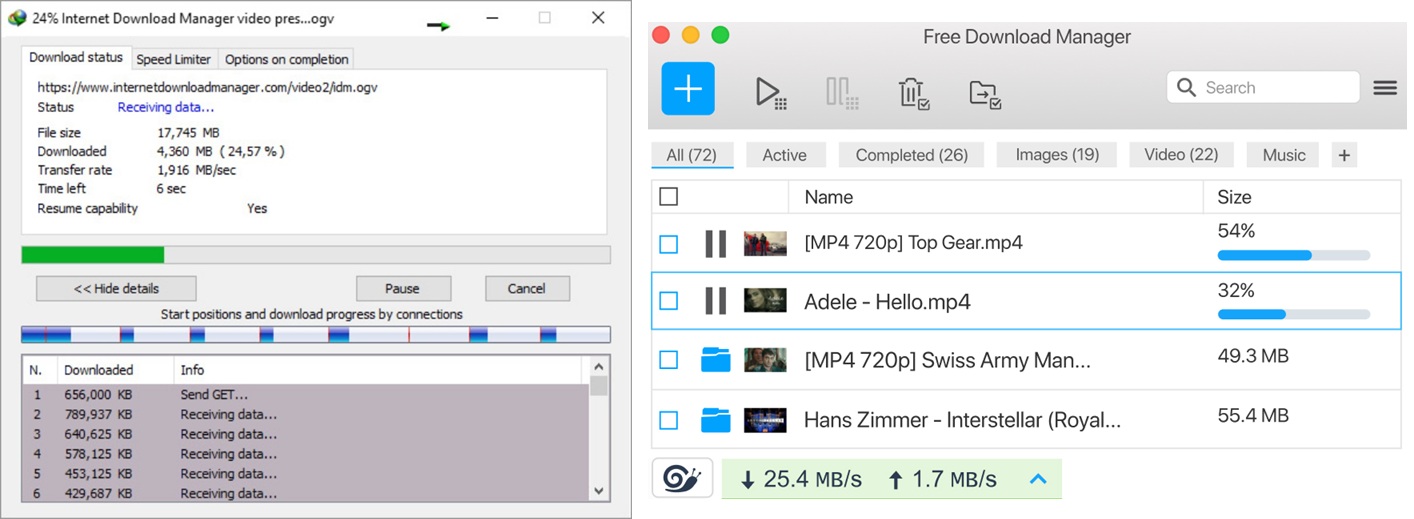
Most default settings in web browsers and download managers are designed for light web surfing rather than multi-gigabyte archive ingestion. In this guide, we dive into seven advanced software tweaks, connection limits, and downloader optimizations that power users use to extract the highest possible transfer rates from Filejoker.
1. Tune Your Multi-Chunk Connection Count (The Sweet Spot)
Both JDownloader 2 and Internet Download Manager (IDM) let you configure how many parallel TCP streams (chunks) each file is broken into. Setting this too low (e.g., 1 or 2) leaves bandwidth on the table, while setting it too high (e.g., 20+) can cause server-side rate limits or CPU overhead.
The Recommendation: Set your maximum connections per file to between 4 and 8 chunks. In real-world testing on 500 Mbps and 1 Gbps fiber connections, 6 connections per download consistently delivers maximum saturation without dropping packets.
2. Configure Direct Downloads in Your FileJoker Profile
One of the best time-saving features for Premium members is Direct Downloads. When this option is enabled in your account settings, clicking any download link instantly triggers the file transfer without routing you through intermediate countdown or confirmation screens. This is essential for clean clipboard capture in third-party downloaders.
3. Free vs. Premium Account Speed Differences
It is vital to distinguish between a technical network issue and account-tier limitations. Free accounts are intentionally restricted to approximately 50 KB/s to 100 KB/s with enforced waiting queues between successive downloads.
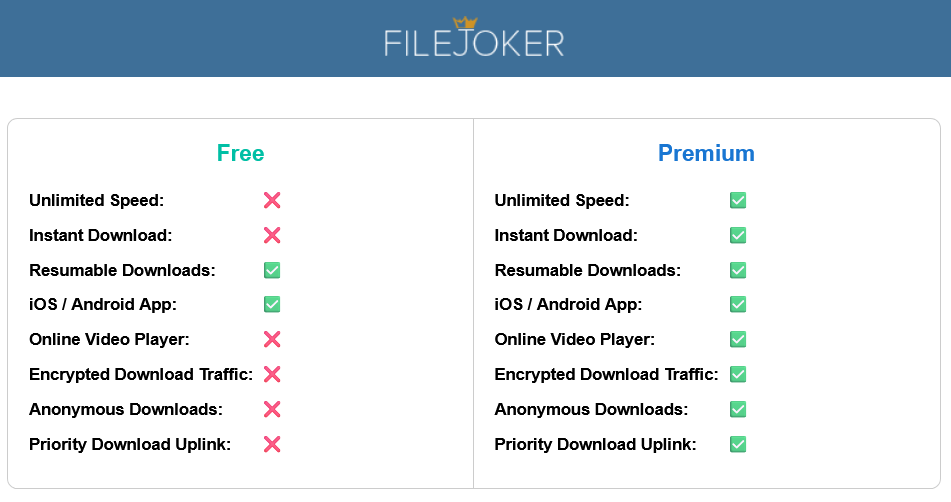
If you are downloading files larger than 500 MB, a Premium or Premium VIP account is essential to unlock unrestricted server bandwidth, multi-connection acceleration, and concurrent file downloading.
4. Increase Chunk Buffer Cache in JDownloader2
When downloading at speeds exceeding 50 MB/s, rapid disk writes can cause high disk queue latency on mechanical HDDs or budget SSDs. In JDownloader 2, navigate to Settings > Advanced Settings and search for GeneralSettings: Max Buffer Size. Increasing this buffer from default to 2000 KB or 4000 KB buffers data into RAM before flushing to storage, preventing write bottlenecks from throttling your network socket.
5. Limit Concurrent File Downloads to 2 or 3
A common beginner mistake is attempting to download 10 files simultaneously. When you download 10 files with 4 chunks each, you are opening 40 simultaneous TCP connections to the server cluster. This triggers server congestion algorithms and spreads your bandwidth too thin. Instead, limit your queue to 2 simultaneous downloads with 6 chunks each; once one completes, the next starts automatically at peak speed.
6. Whitelist FileJoker in Antivirus & Firewall Software
Aggressive real-time web protection modules in third-party antivirus suites (such as Bitdefender, Avast, or Kaspersky) inspect every incoming data packet before passing it to your disk. When streaming gigabytes of compressed archives, this real-time scanning creates massive CPU spikes and throttles download pipelines. Add your download manager’s executable and destination directory to your security suite’s exclusion list.
7. Schedule Heavy Queues for Off-Peak Global Windows
If you have an extensive queue of 50 GB or more, utilize the built-in scheduler in your download client. Schedule your queue to start in the early morning hours (03:00 to 08:00 local time). Global backbone transit providers experience minimum latency during these periods, allowing you to wake up to fully completed, verified archives.
Last Update: 20 September 2026 - 12:00