
Filejoker Error 404: Is the File Deleted or Temporarily Unavailable?
You find a Filejoker link, click it, and expect to download your file. Instead, the page shows a 404 error. No download starts, and the link that worked before suddenly seems useless.
Before you give up on the file, there is one thing worth knowing: a 404 error does not necessarily mean the file has been permanently deleted. It means the requested resource could not be found at the URL you tried to open.
That distinction matters. A broken link, a removed upload, or a problem with the way the request is handled can all lead to an unavailable download. The trick is figuring out which situation you are dealing with.
In this guide, we will look at what a Filejoker 404 error means, how it differs from other common errors, and which troubleshooting steps are actually worth trying.
Don’t worry if you can’t find the file you’re looking for! Use our Filejoker Search tool on our site to easily find what you’re looking for among thousands of files!
What Does Filejoker Error 404 Mean?
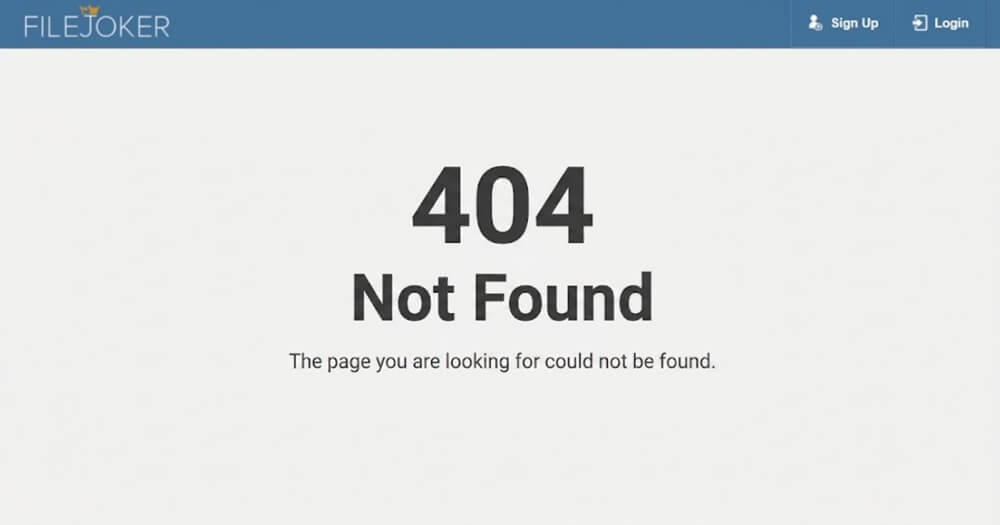
HTTP 404 Not Found is a standard response indicating that the server could not find the requested resource.
When you open a Filejoker download link, your browser sends a request to the address in that link. If the requested page or file cannot be found, the server may respond with a 404 status code.
There is an important detail here: the error does not tell you exactly why the resource is missing.
The URL could be incorrect, the original upload could have been removed, or the address may no longer point to the intended file. The exact cause depends on the situation.
You might encounter messages such as:
- 404 Not Found
- File Not Found
- The requested resource could not be found.
- This file is no longer available.
The wording can vary depending on the page or application displaying the error. What matters is whether the problem comes from the link itself, the file, or the service handling the request.
Does a Filejoker 404 Error Mean the File Has Been Deleted?
Not always. A 404 error alone is not enough to confirm that an upload has been permanently deleted.
There are several possible explanations, and some are easier to check than others.
1. The File Was Removed From Filejoker
One possibility is that the original uploader deleted the file or that the hosting service removed it.
If the upload is no longer available, repeatedly refreshing the page will not bring it back. You may need to contact the original uploader or look for a legitimate replacement copy.
If the uploader confirms that the file has been removed, there is little reason to keep trying the same link.
2. The Download URL Is Incorrect
A broken link does not always mean a broken upload.
Sometimes a URL gets copied incorrectly. A missing character, an extra space, or an incomplete link can prevent the browser from reaching the intended resource.
This is particularly worth checking if you copied the link from a forum, an old blog post, or a messaging application.
Return to the original page and copy the complete URL again. Avoid manually changing parts of the address unless you know what needs to be corrected.
3. The Original Link Has Been Replaced
File links can become outdated when someone uploads a new version or replaces an earlier post.
For example, the original website might still contain a download button, but the link behind it may no longer point to the current upload.
In this situation, checking the original post for an updated link is often more useful than repeatedly opening the old one.
4. A Temporary Technical Problem Is Affecting the Request
Temporary technical issues can sometimes make a resource difficult to access. However, a 404 response is not the usual way to identify every temporary server problem.
If the service is experiencing a broader technical issue, other users may encounter different errors or have trouble accessing the same resource.
Waiting a little while and trying again is reasonable, but do not assume that every 404 error will eventually disappear.
Filejoker 404 vs. 403 vs. 500: What’s the Difference?
Not every Filejoker error means the same thing. If you are troubleshooting a download, the status code can help you understand what kind of problem you are facing.
| Error | What It Means | What to Check |
|---|---|---|
| 404 Not Found | The requested resource could not be found. | Check the URL and original upload. |
| 403 Forbidden | The server is refusing access to the requested resource. | Check access permissions and account-related restrictions. |
| 500 Internal Server Error | The server encountered an unexpected problem. | Try again later and check whether the issue persists. |
| 503 Service Unavailable | The service is temporarily unable to handle the request. | Wait and retry after some time. |
These codes describe different situations, but they do not always reveal the complete cause of a problem. A hosting service may also use its own error pages or responses.
For example, a 403 error does not automatically mean that you need a Premium account. Likewise, a 404 error does not automatically mean that the file has been deleted.
How to Fix a Filejoker Error 404
If a Filejoker download link is returning a 404 error, there is no need to try every possible workaround. Start with the checks that can actually help identify the problem.
Step 1: Open the Original Download Link Again
Go back to the website where you originally found the Filejoker link.
Copy the complete URL again and open it directly in your browser. If the link was shared through a message or forum post, check whether the address was accidentally shortened or broken into multiple parts.
Pay attention to missing characters, extra spaces, and incomplete URLs.
Step 2: Try a Different Browser
Opening the same link in another browser is a quick way to rule out some browser-related problems.
If you normally use Chrome, try Firefox or Edge. You can also try opening the link in a private browsing window.
If the same 404 error appears everywhere, the problem is less likely to be limited to your current browser session.
Of course, changing browsers will not restore a file that has actually been removed.
Step 3: Check the Original Website for an Updated Link
This is one of the most useful steps, especially when the Filejoker link comes from an older forum post or blog article.
Look for comments, updated download buttons, or a newer version of the original post. The uploader may have shared a replacement link without changing the original page.
If the website has a contact option, you can also ask whether the file is still available.
Step 4: Give It Some Time
If the link was working recently and suddenly stopped, waiting a little while is worth a try.
There is no need to refresh the page every few seconds. Close the tab, wait, and try the original URL again later.
If the same error continues to appear, focus on checking the link and the original upload rather than assuming that the issue will resolve itself.
Step 5: Test the Link Outside Your Download Manager
If you are using JDownloader 2 or Internet Download Manager (IDM), try opening the original Filejoker URL directly in your browser.
This helps separate a download-manager issue from a problem with the URL itself.
For example, if the browser opens the file page normally but your download manager reports an error, the application may be having trouble processing the link.
On the other hand, if both the browser and the download manager report that the resource cannot be found, the URL or the resource itself may be the problem.
Keep in mind that a download manager may display its own error message rather than the exact HTTP response received from the server.
You can also visit our Filejoker information guide for more information about the service.
How to Tell If a Filejoker File Is Permanently Deleted
Unfortunately, there is no universal method for confirming the permanent deletion of a Filejoker upload using a 404 error alone.
However, a few clues can help you narrow down the possibilities.
| What You Notice | What It May Indicate |
|---|---|
| The URL contains a typo or is incomplete. | The link itself may be incorrect. |
| The original website provides a newer link. | The old URL may have been replaced. |
| The same 404 appears across multiple browsers. | The problem may not be limited to your browser. |
| The uploader confirms that the file was removed. | The original upload is likely no longer available. |
| The file page opens, but the download does not start. | The issue may involve the download request rather than the page URL. |
The most reliable confirmation usually comes from the original uploader or a valid replacement link.
If you cannot verify the file’s status, it is better to treat the link as unavailable rather than assume that the upload has definitely been deleted.
Can a Filejoker Premium Account Fix a 404 Error?
This is a reasonable question, especially if you are considering a Premium subscription because a download is not working.
However, there is an important difference between an account-related download restriction and a missing resource.
A Premium account may provide additional download benefits depending on the current subscription plan, but it should not be treated as a guaranteed solution to a 404 error.
If the URL is incorrect or the file has been permanently removed, upgrading your account will not necessarily make the resource available.
Before purchasing a subscription to solve a specific download problem, make sure that the original file is still available.
You can find general information about the service through our Filejoker information guide.
Why Does JDownloader 2 Show a Filejoker 404 Error?
If JDownloader 2 reports a Filejoker 404 error, the application may be receiving an unavailable-resource response while trying to process the download link.
Start by copying the original URL and opening it directly in your browser.
If the browser also returns a 404 error, the problem may be related to the URL or the resource itself.
If the browser opens the file page normally, but JDownloader cannot process it, the issue may be related to the application’s handling of the link.
In that case, make sure you are using a current version of JDownloader 2 and try adding the original link again.
It is also worth checking the exact error message shown in the download manager. A message about an unavailable file is not necessarily the same as an account restriction or a connection problem.
What Should You Do If the File Is Gone?
If you have checked the original URL, tried another browser, and confirmed that the original website no longer provides a working link, it may be time to look for another source.
Here are a few reasonable options:
- Check whether the original uploader has published an updated link.
- Look for an official source that provides the same file.
- Contact the person who shared the original link and ask whether a replacement is available.
- If the file belongs to you, check whether you have a local backup or another copy.
Be careful with unfamiliar websites claiming to provide replacement downloads. Some may use broken links as an opportunity to direct visitors to suspicious pages or unwanted software.
Always verify the source before downloading anything.
Frequently Asked Questions
Is Filejoker Error 404 a server error?
HTTP 404 is generally classified as a client error. It means that the requested resource could not be found at the specified URL. The underlying cause may involve the URL, the resource, or the way the server handles the request.
Will a Filejoker 404 error disappear on its own?
It may, if the problem is temporary. However, if the URL is incorrect or the file has been removed, waiting will not necessarily resolve the issue.
Can I download a Filejoker file if the link returns 404?
Not through that unavailable URL under normal circumstances. You will generally need a valid link to the file or another legitimate source that provides it.
Does Filejoker Premium prevent 404 errors?
Premium access does not guarantee that every file will remain available. It also does not automatically make an invalid URL point to the correct resource.
Why does JDownloader show a Filejoker 404 error?
JDownloader may be receiving an unavailable-resource response while processing the link. Try opening the original URL directly in your browser to determine whether the problem is related to the link or the application.
What is the difference between Filejoker 404 and 403?
A 404 error means that the requested resource could not be found. A 403 error means that the server is refusing access to the resource. The two errors indicate different situations and should not be treated as interchangeable.
Final Thoughts
A Filejoker 404 error can be frustrating, especially when the link leads to a file you have been searching for.
But a missing page does not automatically mean that the original upload has been permanently deleted.
Start by checking the URL, revisiting the original website, and opening the link in another browser. If you use a download manager, test the same link directly in your browser to see whether the problem is limited to the application.
If the uploader confirms that the file has been removed, or if no valid replacement link exists, the original upload may no longer be accessible through that URL.
The important thing is to identify the actual problem before spending time on unnecessary troubleshooting or purchasing a subscription that may not solve it.
Disclaimer: Filejoker.site is an independent informational website and is not affiliated with or operated by Filejoker. We do not host files or provide file downloads.