
FileJoker Downloader CLI: A Smarter Way to Download FileJoker Files
If you regularly download files from FileJoker, you probably know how repetitive the process can become. Open the link, log in, start the download, wait for it to finish, and then repeat everything for the next file.
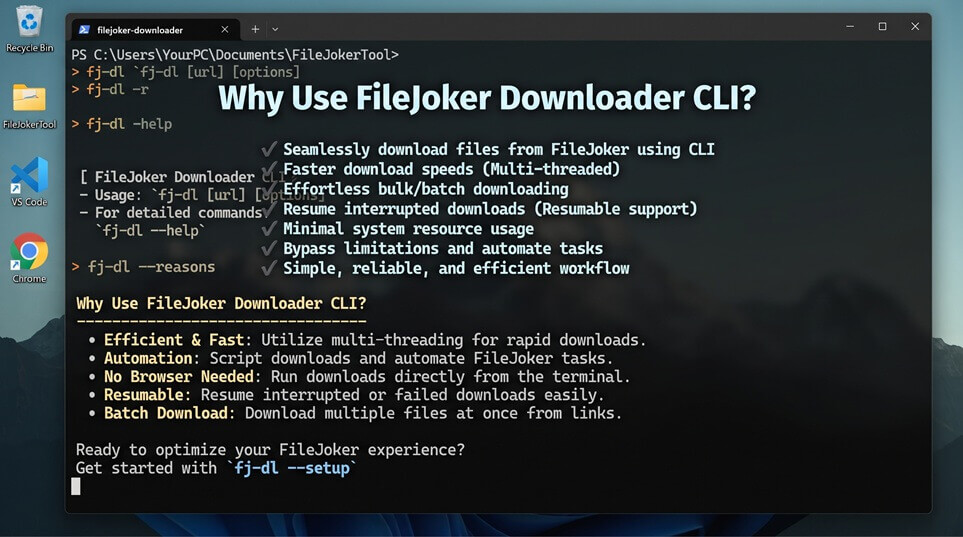
But what if you could manage your FileJoker downloads directly from the command line?
That is where FileJoker Downloader CLI comes in. This open-source Python project provides a simple way for FileJoker Premium users to manage downloads without relying on a browser for every file.
The project is available on GitHub and is particularly interesting for users who work with multiple download links, remote computers, or VPS servers.
Why Use FileJoker Downloader CLI?
The biggest reason to use this project is convenience. While the normal FileJoker website is fine for an occasional file, managing dozens of links through a browser quickly becomes tedious.
FileJoker Downloader CLI changes that workflow by shifting control directly to your terminal with a clean set of features:
- Manage and queue multiple download links via a text file
- Run concurrent downloads using a simple configuration flag
- Automatically rename files during the download process
- Execute and monitor tasks smoothly on a remote computer or VPS
Installation
- Clone/download the files from the repository (https://github.com/handiandi/fileJoker_downloader_cli)
- Install Pipy packages: pip3 install -r requirements.txt or pip2 install -r requirements.txt
Download Multiple FileJoker Files From One List
One of the core features of FileJoker Downloader CLI is its support for structured download lists. Instead of opening every URL individually, you can place your links inside a simple text file, with one URL per line:
https://filejoker.net/example-file-1
https://filejoker.net/example-file-2
https://filejoker.net/example-file-3
Prepare your queue once, and let the command-line tool handle the batch processing.
Easy Link Management
The project also allows individual links to be temporarily disabled using the # character. This lets you maintain a master download list without needing to delete URLs you want to skip for now.
Run Multiple Downloads at the Same Time
Performance matters when dealing with large queues. FileJoker Downloader CLI provides a -t option that allows you to specify the number of simultaneous downloads (defaulting to one).
While this helps make better use of your available connection, keep in mind that overall performance still depends on your internet speed and server-side limitations.
Automatically Rename Downloaded Files
File hosting platforms often generate messy file names that require tedious manual cleanup. This tool solves the problem by letting you specify custom names directly inside your link list:
https://filejoker.net/example-file --> my-clean-file
This small addition saves a surprising amount of time when organizing a large digital library.
Download FileJoker Files on a Remote PC
For technical users, running tasks on a remote machine is often a game-changer. You can deploy this tool on a Linux VPS with high storage capacity and let it handle heavy download queues while keeping your local computer free.
It is an ideal setup for remote server administrators, Linux enthusiasts, or anyone who prefers not to leave their primary PC running during long download sessions.
A Lightweight Alternative to Traditional Download Managers
Rather than bloating the system with hundreds of unnecessary features, FileJoker Downloader CLI focuses strictly on command-line efficiency.
Built in Python using reliable libraries like Requests, BeautifulSoup, and tqdm, the project remains transparent and straightforward for developers or users comfortable with terminal environments.
What About FileJoker CAPTCHA?
There is an important limitation to keep in mind: FileJoker Downloader CLI is not a CAPTCHA bypass tool.
Due to FileJoker’s anti-robot protection, the documented workflow relies on manually completing challenges when triggered, allowing the command-line script to continue its work until the next verification step.
The Bottom Line
If you only download an occasional file every few weeks, the standard web interface is likely enough. However, if FileJoker is a regular part of your workflow, moving to the command line brings a noticeable boost in efficiency.
By combining text-file queues, automatic renaming, simultaneous threads, and remote execution support, this lightweight GitHub project offers a practical and focused solution for power users.