
Filejoker Online Video Player: Instant Browser Streaming for Premium VIP
When downloading large media archives, waiting 20 to 40 minutes for a multi-gigabyte video container to finish downloading before you can even confirm its content is frustrating. For power users and media enthusiasts, the FileJoker Online Video Player is one of the most valuable perks of the Premium VIP subscription.
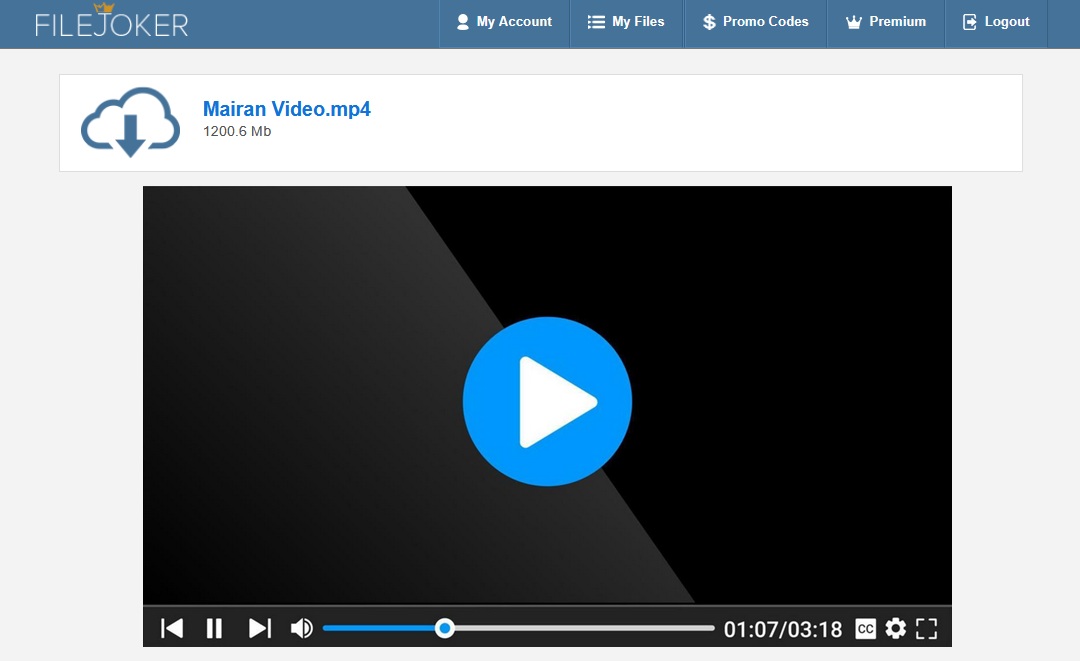
Instead of forcing you to download massive video archives to your physical hard drive, FileJoker’s integrated cloud player decodes and streams media files straight inside your web browser. In this guide, we dive into how the player operates, supported container formats, playback optimization, and how it compares to local file playback.
How the Web Player Works Under the Hood
When you click on a video download link with an active Premium VIP account, the FileJoker interface presents two distinct options: Direct Download or Stream in Browser.
Selecting the player triggers an immediate cloud-to-browser streaming pipeline:
- Adaptive Chunking: The server breaks the media stream into sequential buffer chunks, beginning playback within 3 to 5 seconds.
- Zero Local Disk Consumption: Temporary video data caches in your browser memory rather than filling up your solid-state drive (SSD), making it perfect for laptops, Chromebooks, and tablets with constrained storage.
- Native HTML5 Integration: Operates natively across modern desktop and mobile browsers including Google Chrome, Mozilla Firefox, Microsoft Edge, and Apple Safari with no third-party plugins required.
Supported Video Containers & Codecs
The online player supports common digital video formats encountered on modern file hosting networks:
| Format / Container | Codec Compatibility | Playback Experience |
|---|---|---|
| MP4 (.mp4) | H.264 / AAC | Flawless instant playback across all browsers and devices. |
| WebM (.webm) | VP8 / VP9 / Opus | Smooth high-efficiency streaming on modern desktop browsers. |
| MKV (.mkv) | H.264 video streams | Plays directly when video stream codecs are browser-compatible. |
Direct Streaming vs Downloading: Which Should You Use?
As a media curator, knowing when to stream versus when to download saves both time and bandwidth quota:
- Use In-Browser Streaming: When previewing large video collections, verifying audio/video sync, quickly scrubbing through footage, or watching on a mobile device where local storage is limited.
- Use Direct Download: When archiving pristine 4K master files for permanent offline collections, editing video in Premiere/DaVinci Resolve, or when downloading multi-part compressed RAR archives where unpacking is required.
VIP Traffic Allowance: Plenty of Bandwidth for 4K Streaming
Streaming high-definition video consumes noticeable bandwidth. Fortunately, the Premium VIP plan provides 300 GB of traffic per 5-day rolling period (5x more than standard premium). This generous ceiling ensures you can comfortably stream dozens of hours of high-bitrate video each week without coming close to your limit.
Pro Tips for Smoother Playback
- Use Hardware Acceleration: Ensure hardware acceleration is enabled in your browser settings to offload video decoding to your dedicated GPU.
- Check Your Connection Latency: While bandwidth determines maximum bitrate, low network jitter ensures uninterrupted buffer pipelines during instant scrubbing.
- Resume Capability: If your browser closes accidentally, the player remembers your session, letting you jump back into your stream without reloading the entire file.
Last Update: 20 September 2026 - 12:00