
How to Create a FileJoker Webmaster & Affiliate Account
If you have ever used FileJoker for storing or sharing files, you may already know that there is more to the platform than simple file hosting. FileJoker also has a webmaster and affiliate program that gives users the opportunity to earn money by promoting the service and generating Premium sales.
The affiliate program can be particularly interesting if you already have a website, blog, forum, file-sharing community, or another source of traffic. Depending on the type of affiliate account and the terms offered to you, you can earn commissions from the users you refer to FileJoker.
Historically, FileJoker has offered attractive commission rates through its affiliate program. For example, the PPS (Pay Per Sale) model has previously offered a 65% commission on new Premium sales and 50% on renewals. FileJoker has also offered PPD (Pay Per Download) options, where earnings depend on downloads and other performance factors. Since affiliate rates and conditions can change over time, it is always a good idea to check the current terms when you apply.
How to Apply for a FileJoker Webmaster & Affiliate Account
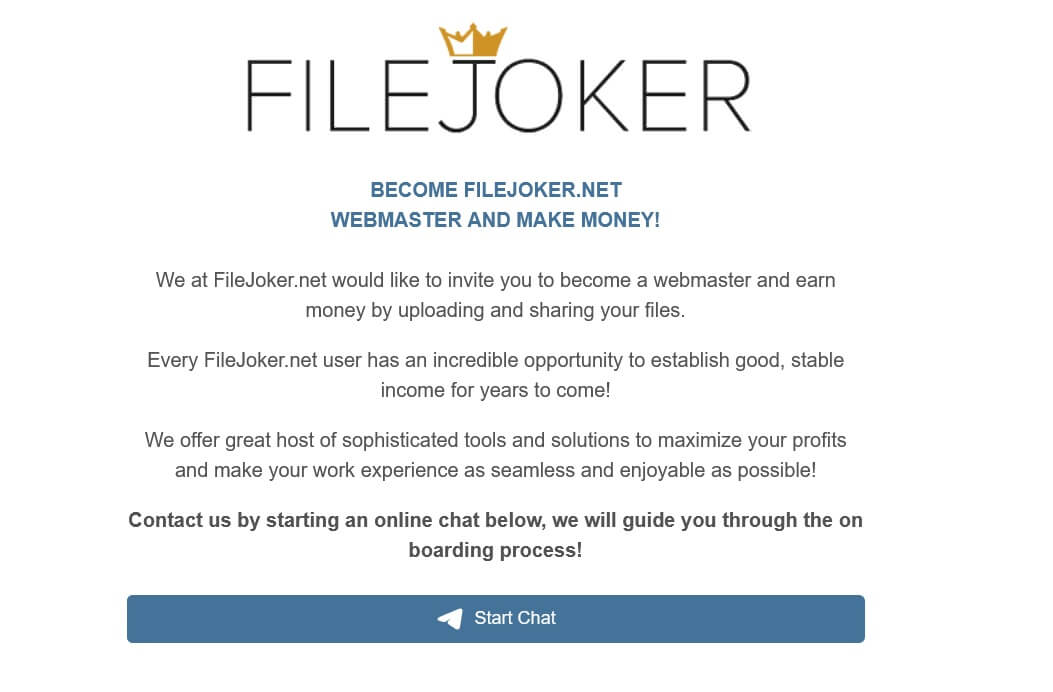
Getting started is actually pretty straightforward. There are two ways you can contact FileJoker if you want to become a webmaster and affiliate.
1. Apply Through the FileJoker Webmaster Page
The first and most official option is to use the webmaster application page provided directly by FileJoker.
FileJoker Webmaster Registration
The page includes a registration form for users who want to join the webmaster program. FileJoker asks you to fill in the requested information and submit the form. According to the page, a manager will then get in touch with you regarding your application.
The application form asks for basic information such as your email address and other details related to your webmaster activity. There is also an Instant Messenger ID field, which can be useful if you want FileJoker to contact you through another messaging service.
Once your application is reviewed and your affiliate account is activated, you don’t need to create a completely separate FileJoker account just to use the webmaster features. Your existing account can be activated as a webmaster account.
One of the easiest ways to tell that the activation has been completed is the WEBMASTER label that appears next to the FileJoker logo when you log in.
After activation, you can also see webmaster-related sections in your account, including My Stats and Promo Codes. These sections are designed to help you keep track of your affiliate activity and manage promotional options.
2. Contact FileJoker Representative MaxFJ on Telegram
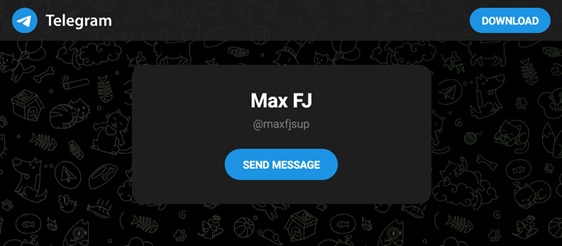
If you prefer to speak with someone directly instead of using the application form, there is another option that many FileJoker users may find more convenient: contacting FileJoker representative MaxFJ on Telegram.
His Telegram username is:
@maxfjsup Contact Max FJ on Telegram
The idea here is pretty simple. Send MaxFJ a short message explaining who you are, that you want to join the FileJoker affiliate and webmaster program, and how you plan to promote FileJoker.
You don’t need to write a long business proposal. If you have a website, blog, forum, file-sharing community, or another source of traffic, simply explain what you have and what you would like to do with the FileJoker affiliate program.
MaxFJ can then let you know whether your application is suitable and help with the affiliate and webmaster activation process if everything is in order.
One small note from my experience: MaxFJ is quite responsive and usually replies quickly. He also seems genuinely willing to help and does his best to support people during the webmaster and affiliate account process.
Which FileJoker Webmaster Application Method Should You Use?
Personally, I would start with the official webmaster registration page. It is the most straightforward way to introduce yourself and submit your application directly to FileJoker.
If you would rather talk to someone directly, or if you have already submitted an application and want to discuss your situation, contacting @maxfjsup on Telegram is another option.
It is also worth mentioning what you are actually planning to do with the account. For example, if you already run a website or forum with an established audience, let them know about it. If you have a specific traffic source or a community where you plan to promote FileJoker, explain that briefly.
There is no need to make things complicated. Just be clear about who you are, what you want to do, and where you plan to promote FileJoker.
What Happens After Your Webmaster Account Is Activated?
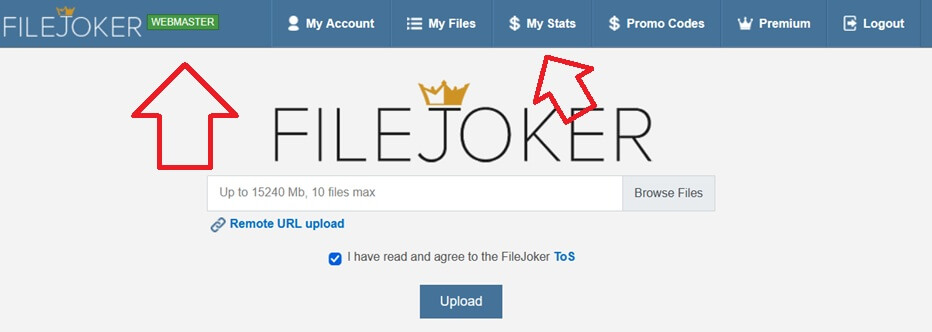
Once your affiliate account has been activated, you can log in to your normal FileJoker account and check the changes. If everything has been set up correctly, you should see the WEBMASTER label next to the FileJoker logo.
You will also have access to additional webmaster features such as My Stats and Promo Codes. Your statistics section can be used to monitor your affiliate performance, while the promo code section can be useful when you want to offer special promotions to the people you refer.
So, if you’re looking to become a FileJoker affiliate, the process is not particularly complicated. Start with the official webmaster application page or contact MaxFJ through Telegram, explain what you are planning to do, and wait for your affiliate account to be activated.
Once the activation is complete, the WEBMASTER label on your account will be a good indication that you’re ready to start using the FileJoker webmaster features.