
How to Use Filejoker Remote Upload: Server-to-Server Transfer Guide
If you regularly manage files across multiple cloud storage platforms or host data on your own web servers, downloading a 2 GB file to your local computer just to upload it back to FileJoker is a massive waste of residential bandwidth and time.
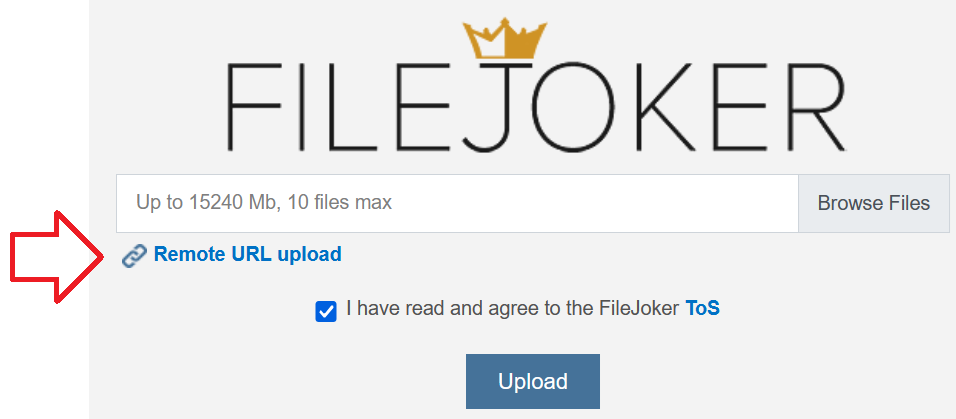
That is where FileJoker Remote Upload comes in. This powerful server-to-server utility allows Filejoker to ingest files directly from internet URLs straight into your account vault at high data center speeds. In this guide, we walk through how it works, supported protocols, and essential troubleshooting tips.
What is Remote URL Upload and Why Use It?
Remote Upload allows you to paste direct web URLs (HTTP, HTTPS, or FTP) into your FileJoker dashboard. FileJoker’s high-speed server backbone then establishes a connection to the source host and transfers the file directly. Key benefits include:
- Zero Local Bandwidth Consumed: Your home internet bandwidth is not touched. You can initiate a 20 GB batch transfer from your phone while on mobile data without consuming your data plan.
- Blazing Fast Server Speeds: FileJoker data centers connect directly to high-capacity tier-1 internet exchanges, frequently pulling remote files at speeds exceeding 100 MB/s.
- Easy Cloud Migration: Transfer assets from VPS servers, dedicated backup mirrors, or public distribution endpoints effortlessly.
Step-by-Step: Initiating a Remote Upload
- Log into your registered FileJoker account.
- Navigate to the Upload section on your dashboard and select the “Remote Upload” tab.
- Paste your direct file links into the text box (one URL per line). Ensure links point directly to the downloadable file ending in valid extensions (e.g.,
.zip,.rar,.mp4). - Click the “Upload” button. The status window will display active progress, current transfer speed, and completion confirmation.
- Once finished, your new files will appear organized in your “My Files” directory, ready for management or link sharing.
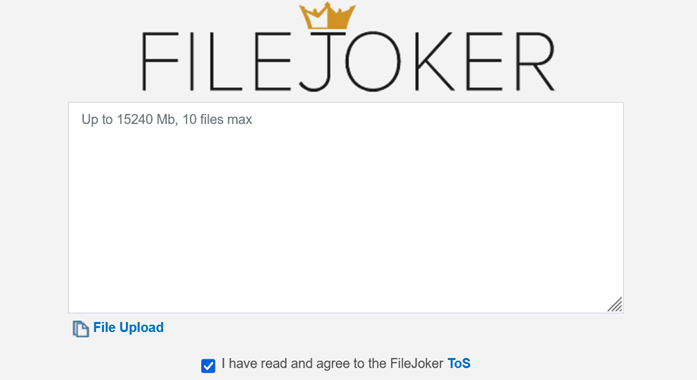
Supported Protocols & Essential Rules
- Direct HTTP / HTTPS Links: URLs must be publicly accessible direct download links that do not require interactive browser captchas, cookies, or JavaScript verification scripts.
- FTP Connections: Standard public FTP links formatted as
ftp://user:password@domain.com/path/file.extare supported for automated backups. - File Size Cap: Remote uploads respect FileJoker’s maximum individual file size limit of 2 GB per file.
Troubleshooting Common Remote Upload Errors
If a remote upload task fails or shows an error status, check the following common causes:
- Hotlink Protection on Source Host: If the source server detects that the request originates from a data center IP rather than a human web browser, it may return a
403 Forbiddenerror. - Dynamic Session Tokens: Links that expire after a few minutes or require browser cookies cannot be fetched remotely. Ensure your source URL is a persistent direct endpoint.
- Source Server Rate Limiting: If you queue twenty simultaneous remote uploads from the same domain, the source server may block the connection due to automated connection rate limits. Queue files in smaller batches of 3 to 5 URLs.
Last Update: 20 September 2026 - 12:00